How to build a free blog with a built-in editor on Cloudflare
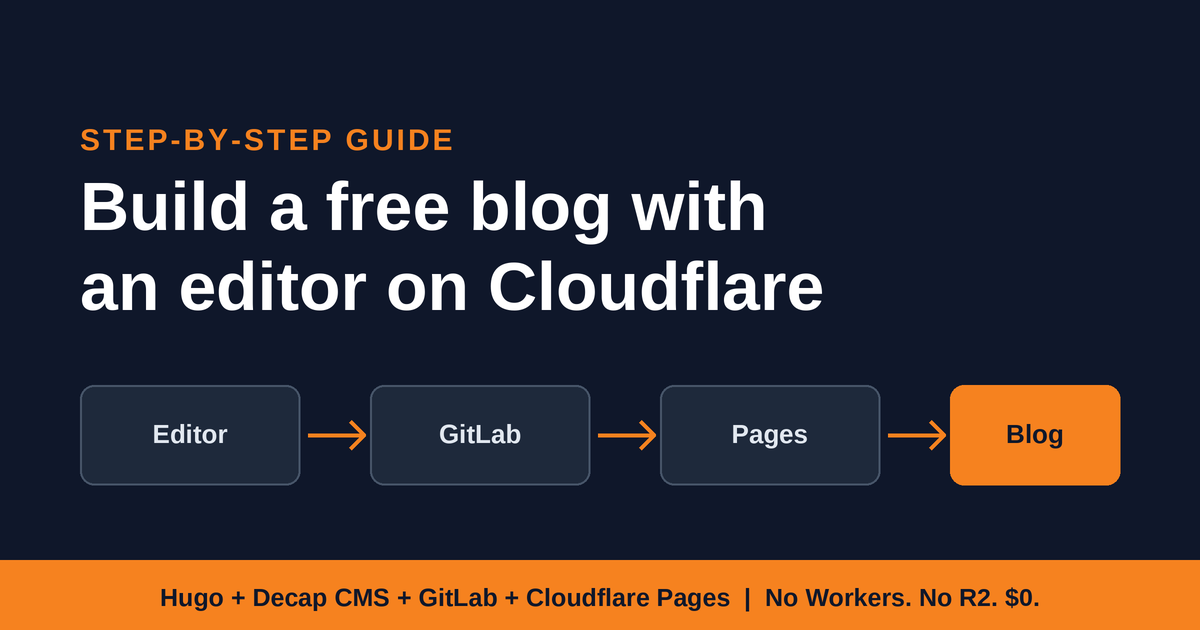
A step-by-step guide using Hugo, Decap CMS, GitLab, and Cloudflare Pages. No Workers, no R2, no terminal.
Why this setup exists
Many “free” CMS templates for Cloudflare run on Workers. A Worker renders every page on request, and the free Workers plan gives each request only about 10 ms of CPU time. A database-backed CMS can easily go over that, and when it does, visitors (and crawlers) get errors and Cloudflare sends you warnings that your Workers hit the CPU limit. The usual fix is to pay.
This guide avoids the problem entirely. Your blog is built ahead of time into plain HTML files, and Cloudflare Pages serves those files. Nothing runs when someone visits, so there is no CPU limit to hit. You still get a proper editor in your browser, so you never have to edit files by hand.
How the pieces fit together
-
Hugo
turns your posts (Markdown files) into a static website.
-
Decap CMS
is the editor. It lives at
/admin/on your site and saves your posts and images into your Git repository.
-
GitLab
stores the repository. It also provides the login for the editor.
-
Cloudflare Pages
watches the repository, rebuilds the site whenever it changes, and serves the result. Images are served from the same site, so you don’t need R2.
The flow when you publish a post: you click Publish in the editor, the editor saves the post to GitLab, Cloudflare notices the change and rebuilds, and about a minute later the post is live.
Why GitLab and not GitHub? Decap’s GitHub login needs a small helper service, which is usually a Worker. Decap’s GitLab login (called PKCE) works with no server at all.
Before you start
You need:
-
A free Cloudflare account.
-
A free GitLab.com account. The free plan includes private projects, with a limit of 5 users per private top-level group, which doesn’t matter for a personal blog.
-
The starter project: a folder containing a minimal Hugo site and the Decap files. It has this structure:
hugo.toml, the site settings
content/posts/, where posts live
layouts/, the page templates
static/admin/index.htmland
static/admin/config.yml, the editor
static/css/style.css, the theme styling
static/images/uploads/, where uploaded images are saved
You don’t need Git installed, and you never open a terminal.
Step 1: Create the GitLab project
-
In GitLab, choose
New project
, then
Create blank project
.
-
Name it, for example,
my-blog.
-
Set visibility to
Private
.
-
Untick
Initialize repository with a README
, or just let GitLab create one. The upload in the next step will replace it either way.
-
Create the project.
Note your GitLab username and project name. Together they form your repository path, for example your-username/my-blog.
Step 2: Upload the starter files
The easiest method is GitLab’s Web IDE, which supports drag and drop.
-
Unzip the starter project on your computer.
-
Open your project in GitLab and press the
.key, or choose
Code
, then
Open in Web IDE
.
-
Open the unzipped folder and select everything inside it:
content,
layouts,
static,
.gitignore,
hugo.toml, and
README.md. Drag the selection into the file list on the left of the Web IDE. Drag the contents, not the outer folder.
-
If it asks about replacing
README.md, choose to replace it.
-
Click the
Source Control
icon in the left bar, type a message such as
Initial blog, and click
Commit to main
.
The files exist only in your browser until you commit. After committing, refresh the project page. You should see content, layouts, static, and hugo.toml listed.
If drag and drop doesn’t work for folders, you can build the structure by hand. Use +, then New directory, to create each folder (typing a path such as static/admin creates both levels), open the folder, and use Upload file to add the files one at a time. The two files named index.html go in different places: one in layouts, one in static/admin.
Step 3: Deploy to Cloudflare Pages
-
In Cloudflare, open the account-level
Workers & Pages
page. Don’t use the Workers Routes page that belongs to a domain.
-
Click
Create application
and look for the
Pages
option (a link such as “Looking to deploy Pages? Get started”). You can recognize the right screen by the address ending in
/create/pages.
-
Choose
Import an existing Git repository
, then
Get started
.
-
On the
GitLab
tab, click
Connect GitLab
, sign in if asked, and click
Authorize
. This is required once. Until you do it, your repository won’t appear in the list.
-
Select your
my-blogrepository and click
Begin setup
.
-
Fill in the build settings:Production branch:
mainFramework preset:
Hugo
Build command:
hugoBuild output directory:
public -
Expand
Environment variables (advanced)
and add a variable named
HUGO_VERSIONwith a current Hugo version as the value, for example
0.139.0. Type only the number, with nothing after the last digit.
-
Click
Save and Deploy
.
The first build takes a minute or two. When it finishes, Cloudflare shows your site address, which looks like your-project-xxx.pages.dev. Open it. You should see your blog’s home page.
Step 4: Create the GitLab login for the editor
The editor needs permission to sign in with your GitLab account. You grant that by creating an OAuth application.
-
In GitLab, click your avatar at the top right and choose
Edit profile
.
-
In the left menu, expand
Access
and click
Applications
. You can also go directly to
https://gitlab.com/-/user_settings/applications.
-
Click
Add new application
and fill in the form:
Name:
anything, for example
my-blog cmsRedirect URI:
https://YOUR-SITE.pages.dev/admin/, using your real site address and keeping the slash at the end
Confidential:
untick this box
Scopes:
tick only
api -
Click
Save application
.
-
Copy the
Application ID
, the long string of letters and numbers.
You will also see a Secret. You don’t need it, because this login method doesn’t use one. Don’t paste it into any file or message. If you ever expose it, return to the same page and renew it.
Step 5: Add your settings to the editor config
In GitLab, open static/admin/config.yml, click Edit, and replace the contents with the following. Change the repo and app_id lines to your own values.
Keep the two-space indentation exactly as shown, because YAML depends on it. Commit the change. Cloudflare rebuilds automatically, which takes about a minute.
Step 6: Log in and publish your first post
-
Open
https://YOUR-SITE.pages.dev/admin/.
-
Click
Login with GitLab
and approve the request.
-
The editor opens with your posts. Click
+ Posts
to start a new one.
-
Add a title, a publish date, an optional description and cover image, and write the body.
-
Click
Publish
, then
Publish now
.
The editor saves the post to GitLab, which starts a new Cloudflare build. Follow it on the Deployments tab of your Pages project. About a minute later, the post appears on your site.
Images you upload are stored in static/images/uploads/ in your repository and served from your own site.
Troubleshooting
The build fails with a 404 while downloading Hugo. Look at the log line that names the version it is trying to download. If the version ends with a stray character, such as 0.139.0. with a trailing period, the HUGO_VERSION variable has an extra character. Edit it under the project’s Settings, then Environment variables, so the value is only the version number, then retry the deployment.
Your repository doesn’t appear in Cloudflare. Cloudflare isn’t connected to GitLab yet. On the GitLab tab of the import screen, click Connect GitLab and authorize. If it still doesn’t appear, search by name, reload the page, or revoke Cloudflare under your GitLab applications settings and connect again.
The post is missing from the home page. Hugo hides posts whose date is in the future. This is easy to trigger by accident, since the build time and your post’s time may be in different time zones. Set the date to an earlier time and publish again. If you want future-dated posts to appear, add buildFuture = true to hugo.toml.
The login fails or shows an error. Check that the Redirect URI in your GitLab application matches your site exactly, including https://, the correct domain, /admin/, and the trailing slash. Check that the Confidential box is unticked and that api is ticked. Check that app_id in config.yml is the Application ID and has no extra spaces, and that auth_type is pkce. If you add a custom domain later, add a second redirect URI for it.
You can’t find Applications in GitLab. It sits under Access in the left menu of your profile settings, not at the top level.
The editor works but nothing changes on the site. Check the Deployments tab. A failed build leaves the old version live, and the log will show why.
Limits and things to know
-
Cloudflare’s free plan allows roughly 500 Pages builds per month. Each time you publish, that counts as one build.
-
Publishing isn’t instant. Expect a minute or two for each change to go live.
-
Only people who can write to your GitLab project can log in at
/admin/.
-
Your content lives in the repository as plain files, so you own it and can move it elsewhere at any time.
-
Plans and limits change. Check the Cloudflare and GitLab pricing pages for current figures before relying on them.
What to do next
-
Delete any old Workers you no longer use, so they stop triggering CPU limit warnings. Open the Worker under Workers & Pages, go to
Settings
, and scroll to the bottom to delete it. Remove any database it created under
Storage & Databases
.
-
Add a custom domain from the Pages project’s
Custom domains
tab, and add that domain to your GitLab application’s redirect URIs.
-
Restyle the site by editing
static/css/style.css, or change the page layouts in the
layoutsfolder.
-
Add pages such as About or Contact by creating new content files or new collections in
config.yml.